Stop, identify which of four error types you have, and fix that one part before regenerating. The four types are: wrong face (identity mismatch), broken layout (composition mismatch), random text in the image (text artifacts), and wrong aspect ratio. Do not start over from scratch—most failures are a single missing instruction, not a broken prompt.
This guide classifies errors from reading published Faymas prompts and competitor pages. No generation tests were run. The fixes are editorial recommendations based on prompt structure, not guaranteed model behaviours.
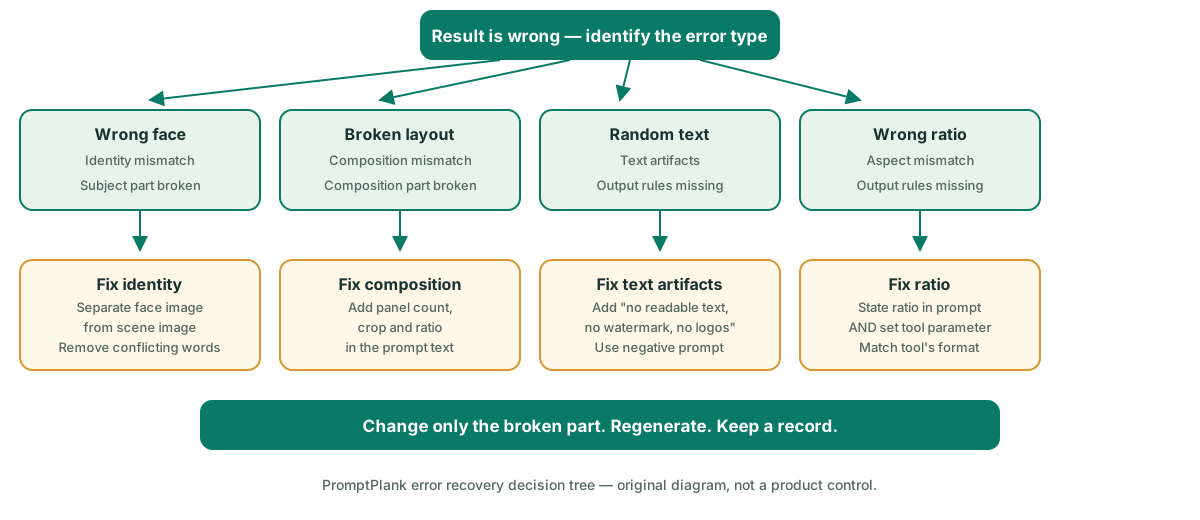
The four error types
Every failed Faymas prompt result we have seen falls into one of four categories. Naming the error type tells you which part of the prompt to edit, so you do not rewrite the whole thing and lose what was working.
| Error type | What you see | Which prompt part is broken |
|---|---|---|
| Identity mismatch | The face does not look like the reference photo or the described person. | Subject — the identity instruction is missing, vague, or conflicts with the scene. |
| Composition mismatch | The crop is wrong, panels collapsed, or the layout does not match the instruction. | Composition — panel count, crop direction, or ratio was not stated or was ignored. |
| Text artifacts | Readable text, watermarks, or logos appear in the image. | Output rules — exclusions were not added or the tool defaults to rendering text. |
| Wrong ratio | The image is the wrong aspect ratio for your target platform. | Output rules — the ratio was not stated, or the tool's parameter name differs. |
Fix 1: Identity mismatch
Symptom: The generated face does not match your reference photo or the person you described.
Diagnose: Check whether the prompt names the reference image as an identity source. If the prompt describes a scene (clothing, pose, setting) that conflicts with the reference photo, the model may prioritise the scene and discard the face.
Fix: Separate identity from scene. State explicitly which image supplies the face and which supplies the environment. If the prompt asks the model to "keep the person from the reference," confirm that the reference is actually uploaded and that the scene description does not override it. Remove any identity adjectives that describe a different person than the reference.
Do not: Add more adjectives about the face. If the model did not use the reference, stronger words will not force it. Fix the input mapping instead.
Fix 2: Composition mismatch
Symptom: A multi-panel prompt produced a single image, or the crop is too tight or too wide.
Diagnose: Check whether the prompt states panel count, crop direction, and aspect ratio. If these are only visible in the example output and not in the text, the model has no instruction to follow.
Fix: Add explicit composition instructions: "three horizontal panels," "vertical 9:16 crop," "subject in the upper third." Do not rely on the example image's layout unless you are uploading it as a layout reference. If the tool has a separate ratio parameter, set it there in addition to the prompt text.
Do not: Describe the mood more vividly. Composition is structural, not atmospheric. More mood words will not fix a missing panel instruction.
Fix 3: Text artifacts
Symptom: Random letters, watermarks, or brand-like logos appear in the generated image.
Diagnose: Check whether the prompt includes explicit exclusions. Many tools render text by default unless told not to. Competitor pages like Dreamina's 80s guide recommend generating a clean visual first and adding text later—but they do not tell you to add the exclusion in the prompt itself.
Fix: Add "no readable text, no watermark, no logos" to the prompt. This is an output rule, not a style choice. If the tool has a negative prompt field, put the same exclusions there. If text still appears after adding exclusions, the tool may not support negative instructions—check the tool's documentation.
Do not: Try to describe the text you want removed. Naming unwanted elements can sometimes make the model draw them. Use exclusions, not descriptions.
Fix 4: Wrong aspect ratio
Symptom: The image is square when you needed 16:9, or landscape when you needed vertical.
Diagnose: Check whether the prompt states the ratio. Different tools use different parameter names: Dreamina uses image ratio settings, SeaArt uses dimension fields, and Media.io uses platform presets. If you only wrote "wide" or "vertical" in the prompt text, the tool may not have parsed it.
Fix: State the ratio explicitly in the prompt ("16:9 horizontal" or "9:16 vertical") and also set the tool's ratio parameter. If the tool's documentation uses a specific format, match it exactly.
Do not: Assume the tool inferred the ratio from the example image. Set it in two places: the prompt text and the tool's ratio control.
The one-change rule
After identifying the error type and applying the fix, change only that one part of the prompt before regenerating. If you fix the composition and also rewrite the scene description, you cannot tell which change produced the next result. Keep a record of what you changed so the next attempt is traceable.
This connects directly to our prompt structure audit: if you audited the prompt before generating, you already know which part was missing. The error recovery guide tells you what to do when you skipped the audit and the result went wrong.
Questions before you regenerate
The face is wrong but the scene is perfect. Do I rewrite everything?
No. Fix only the identity instruction. If the scene is correct, keep every scene word unchanged. Changing the scene to fix a face problem will likely break the scene too.
My prompt worked yesterday but produces text artifacts today. What changed?
Check whether the tool updated its default behaviour. Some models add text rendering in new versions. Add explicit exclusions ("no readable text, no watermark") even if you did not need them before. Do not assume the prompt is broken if the tool changed underneath it.
How many times should I regenerate before giving up?
If the same error appears after you applied the targeted fix and changed nothing else, the issue is likely the tool, not the prompt. Check the tool's documentation or try a different model. Three identical failures after a correct fix means stop and investigate the tool, not the prompt.
For the pre-generation checklist, read our prompt structure audit. This guide is independent and is not affiliated with Faymas.